On this page
Table of Contents
What ERR_MODULE_NOT_FOUND means
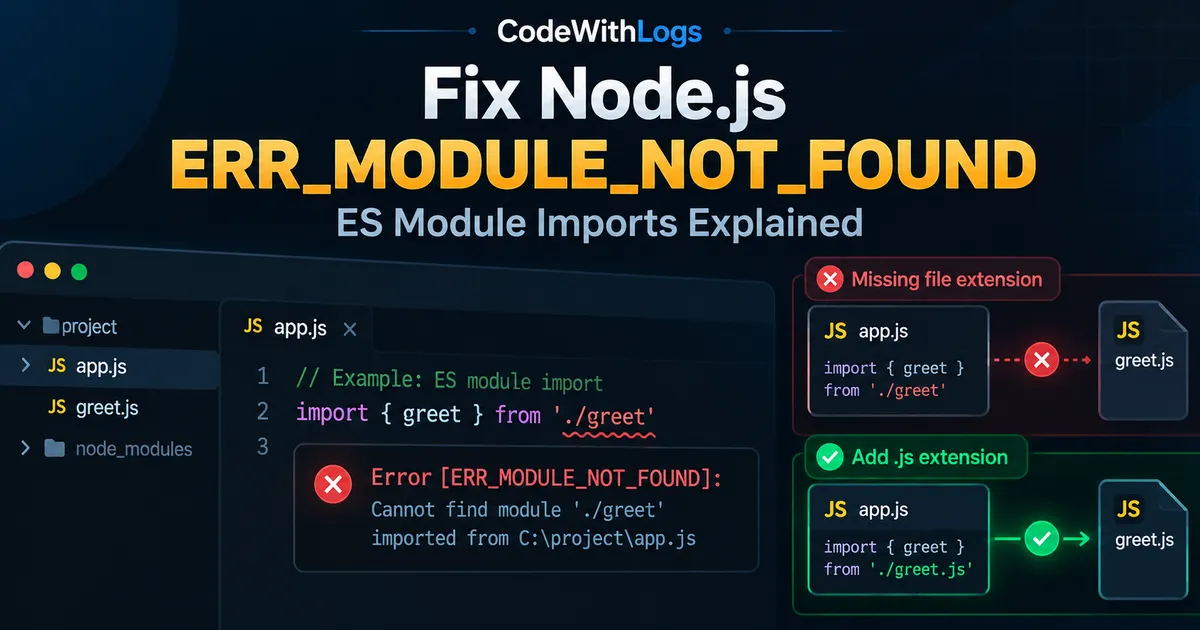
When running native ES modules, Node.js may show:
Error [ERR_MODULE_NOT_FOUND]: Cannot find module ...The ES module loader could not resolve an imported module or an entry point. Start with the full error: which module is missing, and which file tried to import it? Different root causes require different fixes, from local paths to missing package installations.
Step 1: Add the file extension for relative ES module imports
Consider:
project/
├── package.json
└── src/
    ├── main.js
    └── greet.js
A project using native ESM can declare:
{
  "name": "esm-example",
  "private": true,
  "type": "module",
  "scripts": {
    "start": "node src/main.js"
  }
}src/greet.js:
export function greet(name) {
  return `Hello, ${name}!`;
}
An incorrect native ES module relative import might be:
import { greet } from './greet';Because the actual file is greet.js, use:
import { greet } from './greet.js';
console.log(greet('CodeWithLogs'));
Run npm start. The expected, unexecuted output is Hello, CodeWithLogs!. Native Node.js ESM requires explicit extensions in relative or absolute file imports. Some bundlers and CommonJS resolution conventions differ.
Step 2: Verify the filename and directory
Imports beginning ./ or ../ are resolved relative to the importing file, not the shell's working directory.
For example:
src/
├── main.js
└── helpers/
    └── config.js
From src/main.js, this is wrong if no src/config.js exists:
import { config } from './config.js';Use:
import { config } from './helpers/config.js';On Windows, inspect expected source files using PowerShell:
Get-ChildItem .\src\helpers\
Test-Path .\src\helpers\config.js
Remember that PowerShell paths here are relative to your current shell location, not automatically to the importer. Check filename case carefully: UserService.js and userservice.js may be treated differently on case-sensitive Linux filesystems even if development on Windows seemed fine.
Step 3: Distinguish a local file from an npm package
These imports are not equivalent:
import thing from './thing.js';   // relative file
import thing from 'thing';        // package name
If the missing target is a package, examine package.json, the package manager in use, and installed dependencies. For an npm project:
npm ls expressIf express is intentionally required and not declared or installed, add it deliberately:
npm install expressInstallation changes dependency records and may modify the lockfile. If you already have a suitable npm lockfile and need a clean, reproducible installation, npm ci may help—but it removes the existing node_modules tree first. Do not run it as the first response to an incorrect local import or in an unfamiliar workspace.
Step 4: Check the module type in package.json
Native Node.js supports CommonJS and ECMAScript modules. A package may explicitly opt into ESM for .js files:
{
  "type": "module"
}
.mjs indicates an ES module and .cjs indicates CommonJS. Modern Node.js can also detect module syntax in some otherwise ambiguous files, but explicit configuration improves clarity. Adding "type": "module" to an existing CommonJS application may break files relying on require, so review the project before changing it.
Step 5: Fix directory imports and understand package exports
A relative import like:
import { formatDate } from './utils';is not a native Node.js ESM shortcut for ./utils/index.js. It can produce ERR_UNSUPPORTED_DIR_IMPORT, which is related but not ERR_MODULE_NOT_FOUND. Use the explicit file:
import { formatDate } from './utils/index.js';Packages may also define an exports map:
{
  "name": "example-package",
  "exports": {
    ".": "./dist/index.js",
    "./helpers": "./dist/helpers.js"
  }
}
An internal path not included in this map may fail with ERR_PACKAGE_PATH_NOT_EXPORTED—again, a different error. Use the package's documented public entry point rather than importing its private implementation files.
Step 6: Check compiled TypeScript imports
TypeScript code executed through native Node.js ESM needs import specifiers compatible with emitted JavaScript.
Example layout:
project/
├── package.json
├── tsconfig.json
└── src/
    ├── main.ts
    └── greet.ts
Example tsconfig.json:
{
  "compilerOptions": {
    "target": "ES2022",
    "module": "NodeNext",
    "moduleResolution": "NodeNext",
    "rootDir": "src",
    "outDir": "dist",
    "strict": true
  }
}
With a package-level "type": "module", write a source import as:
import { greet } from './greet.js';Even though the source file is greet.ts, TypeScript's NodeNext resolution understands that the emitted target is greet.js. After a successful build, verify files such as dist/main.js and dist/greet.js exist before running:
node dist/main.jsTypeScript path aliases are not automatically rewritten into runtime-compatible Node imports. For example, a @/utils alias recognized by a framework or type checker might fail when the compiled JavaScript is executed directly by Node. Use runtime-supported import maps, suitable build tooling, or explicit relative paths.
Step 7: Investigate Windows-versus-Linux differences
If a module is found locally but not on a Linux host, compare exact capitalization and inspect the emitted build directory. Ensure required runtime packages are declared for the deployment's install process. A missing output file or case mismatch is more likely than a broken hosting platform when the error explicitly names that path.
Step 8: Verify with the original command
After correcting one specific import, rerun the original failing command. For a small sample:
npm startFor a TypeScript project, rebuild using the repository's configured command and inspect the dist files before executing them. Then run the relevant test suite. Do not interpret a successful import as proof that every other module is configured correctly.
FAQ
Is ERR_MODULE_NOT_FOUND the same as MODULE_NOT_FOUND?
Not exactly. The former is associated with native ESM module resolution; the latter is common in CommonJS resolution. Investigate which loader produced the error.
Can the file exist and still trigger the error?
Yes. The import may specify the wrong path, extension, capitalization, or emitted output location.
Should I delete node_modules?
Not unless there is evidence of a dependency installation problem. Removing packages will not repair ./greet when the correct ESM import is ./greet.js.
Why does TypeScript accept an import that fails at runtime?
Type checking and runtime resolution can use different rules. Check the emitted JavaScript and the Node.js runtime's supported module specifiers.
Does this error always come from an npm package?
No. It can originate from local files, package entry points, or the application entry file itself.
Conclusion
Read the missing path and importing file, then fix the specific resolution failure. For native ESM, start by checking explicit file extensions, relative paths and filename case. For packages, review installation and exports rules; for TypeScript, inspect emitted JavaScript. Avoid blanket reinstallations that do not address the root cause.
Official documentation:
Keep the conversation useful
Found a different result?
Include your framework version, the error, and the steps to reproduce it. Specific details help improve the article for the next reader.
Send a correction or question