On this page
Table of Contents
How to Fix Next.js Hydration Errors (2026 Guide)
You start your Next.js application, open a page, and see a warning in the browser console:
Hydration failed because the server rendered HTML
didn't match the client.
Sometimes the page still appears to work. Other times, content flashes, a component renders twice, or React replaces part of the page with client-rendered output.
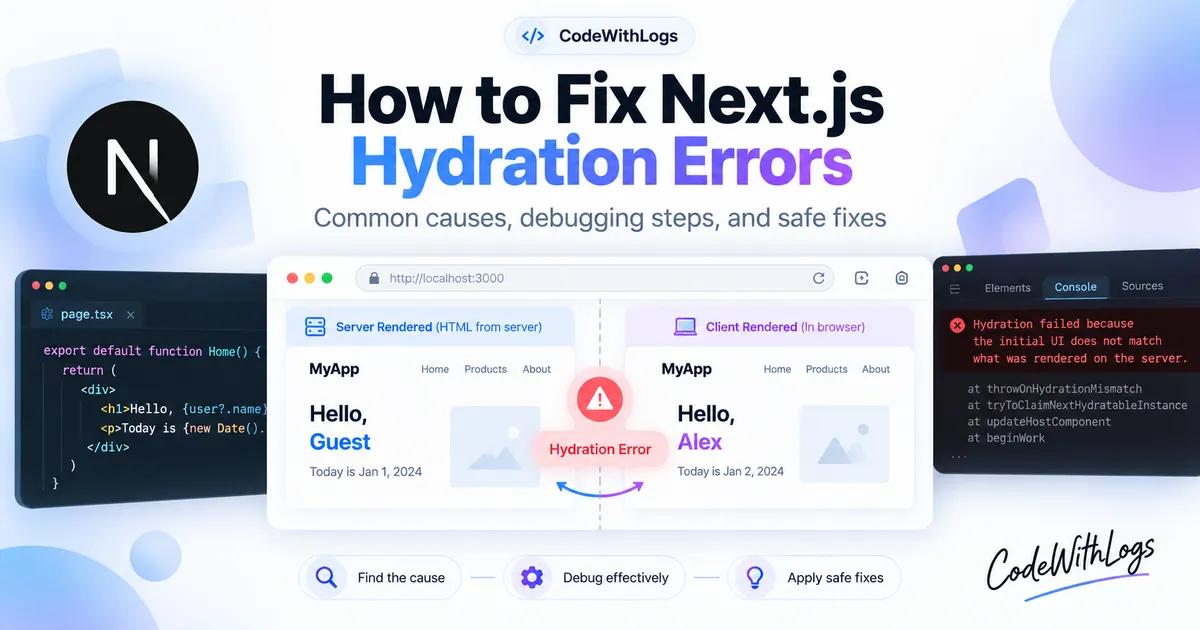
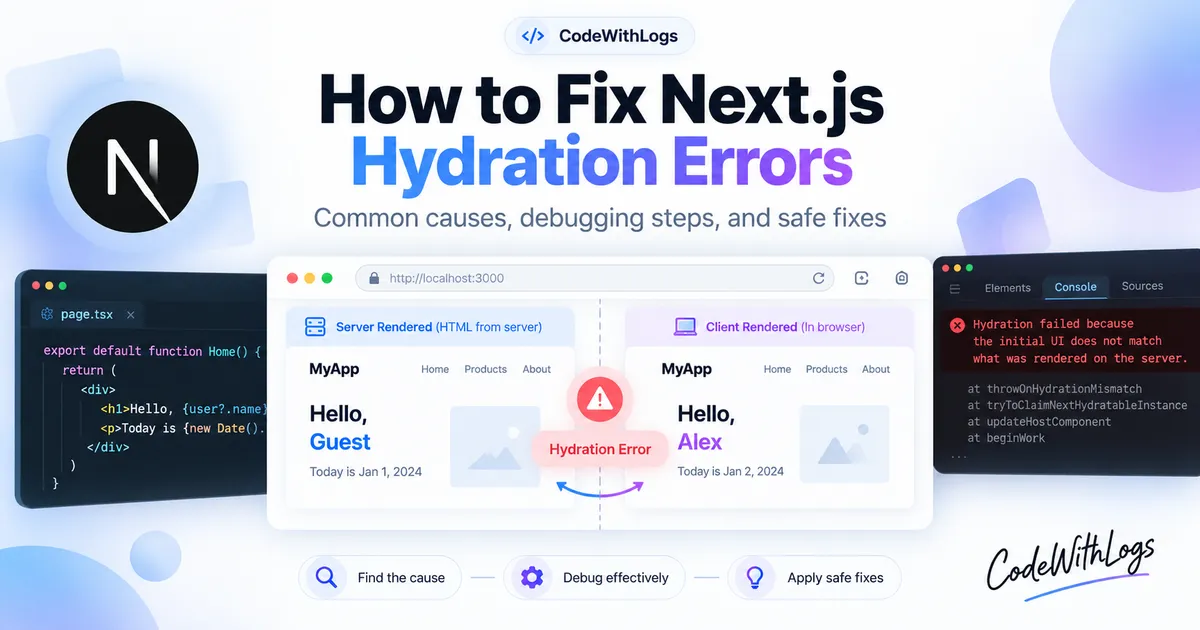
A hydration error means the HTML produced by the server doesn't match what React expects during its first render in the browser.
This commonly happens when a component renders dates, random values, browser storage, or HTML that changes between environments.
Fortunately, most hydration errors can be fixed without disabling server-side rendering.
In this guide, you'll learn why Next.js hydration errors happen, how to identify the mismatched component, and how to fix common causes safely.
The examples use React and the Next.js App Router.
1. What Is Hydration in Next.js?
Next.js can generate HTML on the server before sending the page to the browser.
This lets visitors see useful content before all the client-side JavaScript has finished loading.
React then hydrates the page by attaching interactivity to the server-rendered HTML.
A simplified process looks like this:
Next.js server
     |
     v
Generates HTML
     |
     v
Browser receives HTML
     |
     v
React renders the initial client tree
     |
     v
React hydrates the existing HTML
For hydration to work correctly, the initial browser render needs to match the server-rendered output.
A simple example
Suppose the server generates:
<p>Hello, Guest</p>But the initial browser render expects:
<p>Hello, Alex</p>React detects a mismatch.
Depending on the situation, React may abandon hydration for the affected subtree and regenerate it on the client.
This is more than a cosmetic warning. It can cause unnecessary rendering, layout changes, or unexpected interaction behavior.
2. Why Does Hydration Fail?
Hydration errors typically occur when rendering isn't consistent between the server and browser.
Common causes include:
- Dates or times formatted differently.
- Browser-only APIs accessed during rendering.
- Random values generated inside components.
- Invalid HTML nesting.
- User preferences read from
localStorage. - Browser extensions modifying the page.
- Third-party scripts changing HTML before hydration.
- Server and client using different initial data.
The important distinction is between the initial render and updates that happen after hydration.
A component can display different information after hydration.
The problem occurs when its first browser render conflicts with the HTML already produced by the server.
3. Fix #1: Move Browser-Only Code into useEffect
One common mistake is using window or localStorage during rendering.
Consider this component:
"use client";

export default function ThemeLabel() {
  const theme = localStorage.getItem("theme");

  return <p>Theme: {theme}</p>;
}
This code is problematic because localStorage is only available in the browser.
Even though the component uses "use client", Next.js can still prerender its initial HTML on the server.
The "use client" directive does not mean the component never renders on the server.
The correct approach
Read the browser preference after the component mounts.
"use client";

import { useEffect, useState } from "react";

export default function ThemeLabel() {
  const [theme, setTheme] = useState("default");

  useEffect(() => {
    try {
      const savedTheme =
        window.localStorage.getItem("theme");

      if (savedTheme) {
        setTheme(savedTheme);
      }
    } catch {
      // Storage may be unavailable.
    }
  }, []);

  return <p>Theme: {theme}</p>;
}
The server and the first browser render both display:
Theme: defaultAfter hydration, the effect reads the saved preference and updates the component.
Why this works
React effects run after rendering in the browser.
That makes useEffect a suitable place for browser-specific behavior.
However, moving everything into useEffect is not a good general strategy.
Use it only when information genuinely depends on the browser.
For important above-the-fold content, consider passing stable initial values from the server instead of showing placeholders unnecessarily.
4. Fix #2: Avoid Rendering Unstable Dates
Dates are a common source of server-client differences.
Consider:
export default function CurrentTime() {
  return <p>{new Date().toLocaleString()}</p>;
}
The server and browser may have different time zones or locale settings.
They may also execute the expression at different times.
As a result, the generated text may not match.
Solution A: Format a stable timestamp
If you already have a timestamp, pass it into the component and format it consistently.
export default function PublishedDate({
  timestamp,
}: {
  timestamp: string;
}) {
  const formatted =
    new Intl.DateTimeFormat("en-US", {
      timeZone: "UTC",
      dateStyle: "medium",
    }).format(new Date(timestamp));

  return (
    <time dateTime={timestamp}>
      {formatted}
    </time>
  );
}
For the same valid timestamp, this produces consistent formatting across environments that support the specified format.
Solution B: Show the user's local time after hydration
Sometimes you want to display a time in the visitor's local time zone.
In that case, keep the initial render stable and update the displayed value after mounting.
"use client";

import { useEffect, useState } from "react";

export default function LocalTime({
  timestamp,
}: {
  timestamp: string;
}) {
  const [formatted, setFormatted] =
    useState(timestamp);

  useEffect(() => {
    const local = new Date(timestamp).toLocaleString();

    setFormatted(local);
  }, [timestamp]);

  return (
    <time dateTime={timestamp}>
      {formatted}
    </time>
  );
}
Both initial renders use the same timestamp string.
The visitor's local formatting appears after hydration.
For a polished interface, you may want to reserve enough space to avoid layout shifts when the text changes.
5. Fix #3: Don't Generate Random Values During Render
Random numbers and timestamps can create inconsistent output.
For example:
export default function RandomId() {
  return <p>ID: {Math.random()}</p>;
}
The server might render:
ID: 0.123While the browser produces:
ID: 0.847Those values don't match.
The same problem can happen with Date.now() or a random UUID generated during rendering.
Solution: Use a stable value
If the ID identifies a database record, generate it when the record is created and pass it to the component.
export default function ProductCard({
  productId,
}: {
  productId: string;
}) {
  return <p>Product ID: {productId}</p>;
}
This ensures the component uses the same supplied value during rendering.
What about React's useId?
React provides useId() for generating stable identifiers used in accessibility relationships.
For example:
"use client";

import { useId } from "react";

export default function EmailField() {
  const id = useId();

  return (
    <div>
      <label htmlFor={id}>Email address</label>

      <input
        id={id}
        type="email"
        name="email"
      />
    </div>
  );
}
useId() is appropriate for linking labels and form controls.
It should not be used as a general-purpose database ID generator or list-key strategy.
6. Fix #4: Correct Invalid HTML Nesting
React expects the browser's HTML structure to match the structure generated during rendering.
Invalid HTML can interfere with that process because browsers may automatically repair malformed markup.
Incorrect example
export default function Description() {
  return (
    <p>
      Product description
      <div>Additional details</div>
    </p>
  );
}
A <div> cannot be nested inside a <p>.
The browser may close the paragraph automatically, changing the resulting DOM structure.
React can then detect a hydration mismatch.
Correct example
export default function Description() {
  return (
    <div>
      <p>Product description</p>
      <div>Additional details</div>
    </div>
  );
}
Other HTML nesting mistakes
Watch for:
- A paragraph inside another paragraph.
- A button inside another button.
- A link inside another link.
- Invalid list structures.
- Incorrect table markup.
When React reports a hydration error involving element structure, inspect the generated HTML instead of immediately changing state management.
7. Fix #5: Avoid Different Server and Client Render Branches
A tempting pattern is to check whether the code runs in the browser.
For example:
"use client";

export default function DeviceLabel() {
  return (
    <p>
      {typeof window !== "undefined"
        ? "Browser"
        : "Server"}
    </p>
  );
}
This can create a mismatch.
During server rendering, the component may output:
ServerBut during the first browser render, it may output:
BrowserA safer approach
Keep the initial value consistent.
"use client";

import { useEffect, useState } from "react";

export default function DeviceLabel() {
  const [mounted, setMounted] = useState(false);

  useEffect(() => {
    setMounted(true);
  }, []);

  return (
    <p>{mounted ? "Browser" : "Loading..."}</p>
  );
}
Both initial renders display:
Loading...The component then updates after hydration.
For information that does not truly depend on the browser, rendering a consistent value directly is preferable.
8. Fix #6: Use Client-Only Components When Necessary
Some libraries depend heavily on browser APIs.
Examples may include certain browser-based editors, map integrations, visualization packages, or widgets that directly manipulate the DOM.
If a component cannot safely be prerendered, you can load it only on the client.
Next.js supports this through next/dynamic.
Example
Create a Client Component:
"use client";

import dynamic from "next/dynamic";

const BrowserWidget = dynamic(
  () => import("./BrowserWidget"),
  {
    ssr: false,
    loading: () => <p>Loading widget...</p>,
  }
);

export default function WidgetPanel() {
  return <BrowserWidget />;
}
The dynamically imported component must exist at the specified path.
The ssr: false option must be used from an appropriate Client Component; it is not supported directly inside a Server Component.
When should you use this?
Use it for components that genuinely require browser-only rendering.
Don't disable server-side rendering for your entire application just to remove a warning.
Client-only rendering can delay visible content and increase reliance on JavaScript.
The better fix is usually to make the initial rendering output consistent.
9. Fix #7: Inspect Browser Extensions and Third-Party Scripts
Sometimes hydration errors affect only particular browsers or users.
A browser extension may modify the DOM before React hydrates the page.
Examples include certain translation, accessibility, and content-modification extensions.
Third-party scripts or edge transformations can also change HTML unexpectedly.
How to investigate
First, reproduce the page in a clean browser profile without extensions.
Then compare the result with the affected browser.
If the error disappears, inspect whether an extension or injected script is modifying the page.
If it persists, return to your application's rendering logic.
Don't assume every extension is responsible
Extensions are one possible cause, not a universal explanation.
Also inspect third-party scripts, CDN HTML transformations, and libraries that manipulate DOM elements directly.
Avoid disabling security-related software or browser protections simply to make a warning disappear.
10. Should You Use suppressHydrationWarning?
You may find this React option in hydration error discussions:
<time suppressHydrationWarning>
  {new Date().toLocaleTimeString()}
</time>
It can suppress a hydration warning for an intentionally different piece of markup.
But it doesn't fix the underlying difference.
Next.js documents suppressHydrationWarning as an escape hatch that works only one level deep.
React also doesn't guarantee that mismatched text will be patched as you might expect when the option is used.
When is it appropriate?
It may be suitable for a narrowly scoped element whose content legitimately differs and where the behavior is understood.
When is it not appropriate?
Don't add it across your root layout or entire page merely to silence warnings.
Doing that can hide genuine rendering bugs.
Whenever possible, fix the mismatched output directly.
11. How to Debug a Hydration Error Step by Step
When you encounter a hydration mismatch, use a repeatable process.
Step 1: Read the exact error
Open the browser's developer console.
Look for the element or component identified in the warning.
Modern React development diagnostics can provide information about the difference between server and client markup.
Step 2: Reproduce locally
Start the Next.js development server:
npm run devOpen the affected route.
Development mode generally provides more useful debugging information than minified production output.
Step 3: Search for unstable rendering
Inspect components for:
Math.random()
Date.now()
new Date()
toLocaleString()
localStorage
window
document
These expressions are not inherently wrong.
The risk comes from using them in ways that make the initial HTML differ between environments.
Step 4: Inspect HTML nesting
Check the markup around the reported element.
Look for invalid parent-child combinations that the browser might repair automatically.
Step 5: Compare browser environments
Try a clean browser profile.
Inspect browser extensions and third-party scripts if the issue appears only in particular environments.
Step 6: Test the production build
Run:
npm run build
npm run start
Open the affected page.
A local production build can help identify differences between development and optimized rendering.
However, it may not reproduce issues caused by your deployment environment or CDN configuration.
Step 7: Apply the smallest fix
Make one change at a time.
For example, move a browser-only read into useEffect, stabilize a timestamp, or correct invalid markup.
Avoid moving the entire application to client-only rendering.
Step 8: Verify the result
Repeat the original scenario.
Confirm that the hydration warning is gone and that the component still behaves correctly.
Also inspect whether the change introduced a loading flash or layout shift.
12. Common Hydration Fixes That Can Make Things Worse
Adding use client everywhere
The "use client" directive doesn't automatically eliminate server prerendering.
It also creates client component boundaries that can increase browser-side JavaScript.
Use it where interactivity or browser APIs are required.
Making every component client-only
Disabling SSR across large sections may hide hydration differences but reduce the benefits of server-rendered HTML.
Reserve this for components that truly need browser-only execution.
Ignoring the server-rendered HTML
A hydration issue is about a mismatch.
You need to understand both the server output and the initial browser render.
Fixing only the browser state without considering server HTML can leave the problem unresolved.
Suppressing every warning
Warnings can point to real correctness problems.
Use suppressHydrationWarning only for specific, understood exceptions.
Assuming development success proves production correctness
Different environments can produce different dates, data, scripts, or build behavior.
Verify the actual deployment after applying a fix.
13. Frequently Asked Questions
What causes a hydration error in Next.js?
It occurs when the server-rendered HTML doesn't match React's first render in the browser. Common causes include dates, random values, browser-only APIs, invalid HTML, and DOM modifications.
Does use client fix hydration errors?
Not automatically. Client Components can still be prerendered on the server. Their initial browser output must remain compatible with that server-generated HTML.
Can localStorage cause hydration mismatches?
Yes. Reading browser storage during rendering can produce server errors or inconsistent initial content. Read it after hydration or provide a stable server-compatible initial value.
Is hydration failure a critical production problem?
It depends on the affected content and behavior. React may recover by regenerating a subtree, but mismatches can cause visual instability and unnecessary work. They should be investigated rather than ignored.
Why does the error appear only in production?
Production data, caching, environment configuration, third-party scripts, and browser conditions may differ. Compare the actual deployed output and reproduce the same scenario locally where possible.
Can I fix hydration by disabling SSR?
Sometimes a specific browser-only component can be loaded without SSR. But disabling SSR broadly is usually not the best solution.
Final Thoughts
Hydration errors in Next.js become easier to understand once you know what React expects.
The server generates HTML, and the browser's first render must match it.
When those outputs differ, React may need to regenerate part of the page instead of hydrating the existing markup.
Most fixes involve making initial rendering deterministic.
Use stable values, handle browser-specific information after hydration, keep HTML valid, and avoid unnecessary client-only rendering.
Start with the exact warning, identify the mismatched component, and make the smallest change that fixes the actual cause.
The goal isn't to hide hydration errors. It's to make your server and client agree on the initial UI.
Related CodeWithLogs Guides
- How to Debug Production Errors in Next.js
- How to Improve Next.js Website Performance
- Next.js Environment Variables Not Working
- Common Vercel Deployment Errors
- Error Decoder Tool
Official Documentation
- Next.js: React Hydration Error
- React: hydrateRoot
- React: useEffect
- Next.js: Lazy Loading
- Next.js: Server and Client Components
Verification note: The examples demonstrate documented rendering patterns and expected behavior. They have not been independently executed against a real Next.js application for this article. Test the affected components in your own development and production environments before relying on the fixes.
Keep the conversation useful
Found a different result?
Include your framework version, the error, and the steps to reproduce it. Specific details help improve the article for the next reader.
Send a correction or question