On this page
Table of Contents
Fix npm.ps1 Cannot Be Loaded on Windows (2026 Guide)
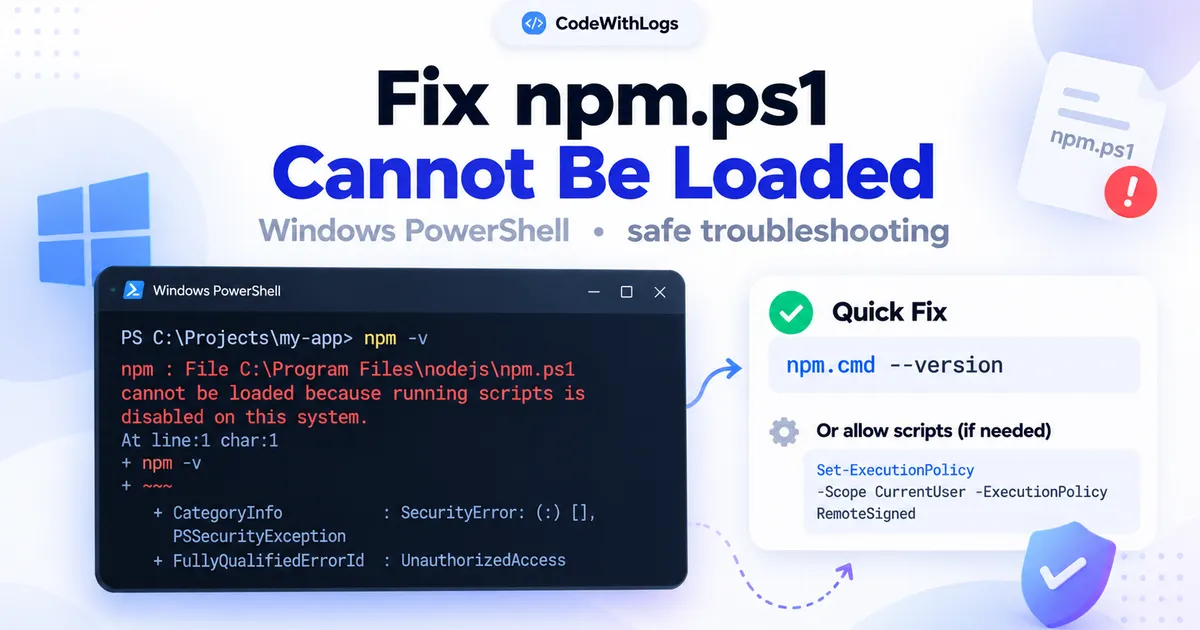
You install Node.js on Windows, open PowerShell, and run:
npm installInstead of installing dependencies, PowerShell displays an error:
npm : File C:\Program Files\nodejs\npm.ps1 cannot be loaded
because running scripts is disabled on this system.

For more information, see about_Execution_Policies.
The error may also include:
CategoryInfo          : SecurityError
FullyQualifiedErrorId : UnauthorizedAccess
This is a common Windows development environment problem.
The good news is that it doesn't necessarily mean npm or Node.js is broken.
In many cases, PowerShell is blocking the npm.ps1 script because of the current execution policy.
You can often continue working without changing your computer's security settings.
This guide explains why the error occurs, how to fix it safely, and what to do when it appears in VS Code, Windows Terminal, or a company-managed computer.
1. Why Does the npm.ps1 Error Happen?
When you install Node.js on Windows, npm becomes available through command wrappers.
Depending on your installation and command resolution, these can include:
npm.cmd
npm.ps1
The .cmd file is a Windows command-script wrapper.
The .ps1 file is a PowerShell script.
When you type:
npm installPowerShell may resolve the command to npm.ps1.
If your effective execution policy prevents that script from running, PowerShell blocks it.
What is PowerShell execution policy?
Execution policy controls the conditions under which PowerShell loads configuration files and runs scripts.
Common policies include:
Restricted— Blocks PowerShell script execution.RemoteSigned— Allows local scripts but generally requires downloaded scripts to be signed by a trusted publisher.AllSigned— Requires scripts to be signed by a trusted publisher.Bypass— Does not block scripts or display execution-policy warnings.
Microsoft describes execution policy as a safety feature rather than a complete security boundary.
That distinction matters because changing the policy is not the same as fixing a broken npm installation.
2. Fix #1: Use npm.cmd Without Changing Execution Policy
For many developers, this is the simplest first solution.
Instead of running:
npm installRun:
npm.cmd installPowerShell explicitly invokes the Windows command wrapper instead of the PowerShell script.
You can verify npm is available with:
npm.cmd --versionIf your Node.js installation is configured correctly, npm should print its version.
Other npm commands
The same approach works for common operations:
npm.cmd run devnpm.cmd run buildnpm.cmd install next react react-domWhy this is a good first option
Using npm.cmd avoids changing the PowerShell execution policy.
It is particularly useful when you:
- Want a quick way to continue development.
- Don't have permission to change execution policies.
- Use a managed work computer.
- Only need to execute npm commands.
Important: This doesn't make arbitrary PowerShell scripts safe or executable. It simply selects the npm command wrapper that does not require running npm.ps1.
If npm.cmd is not found, your problem may involve the Node.js installation or PATH configuration instead.
3. Fix #2: Check Your Current PowerShell Execution Policy
Before modifying PowerShell configuration, inspect the current settings.
Run:
Get-ExecutionPolicyThis prints the effective execution policy for the current session.
For example, you might see:
RestrictedThat indicates PowerShell script execution is restricted.
For a more complete view, run:
Get-ExecutionPolicy -ListIllustrative output:
        Scope          ExecutionPolicy
        -----          ---------------
MachinePolicy          Undefined
UserPolicy             Undefined
Process                Undefined
CurrentUser            Undefined
LocalMachine           Restricted
The actual output depends on your computer's configuration.
Why are there multiple scopes?
PowerShell supports different policy scopes.
Process affects the current PowerShell session.
CurrentUser applies to your Windows user account.
LocalMachine applies to users on the computer.
MachinePolicy and UserPolicy can be configured through Group Policy.
A higher-precedence policy may determine the effective result even when another scope has a different value.
When does Group Policy matter?
On company-managed or school-managed computers, administrators may enforce script-execution restrictions.
If MachinePolicy or UserPolicy is configured, ordinary execution-policy changes cannot override that organizational policy.
Do not attempt to bypass security restrictions on a managed device without authorization.
Use an approved development environment or contact your IT administrator.
4. Fix #3: Use RemoteSigned for Your Windows Account
If this is your personal development computer and you want to run ordinary local PowerShell scripts, RemoteSigned may be an appropriate setting.
First, review the current policies using:
Get-ExecutionPolicy -ListIf you're authorized to change the setting, run:
Set-ExecutionPolicy -Scope CurrentUser -ExecutionPolicy RemoteSignedPowerShell may ask for confirmation.
Follow the prompt after reviewing the change.
Then verify:
Get-ExecutionPolicyIf the effective policy is now RemoteSigned, try:
npm --versionAnd:
npm installWhy CurrentUser?
The CurrentUser scope limits the persistent configuration change to your account.
You generally do not need administrator privileges to change this scope.
This is narrower than making a machine-wide change using LocalMachine.
What does RemoteSigned permit?
It permits locally created unsigned scripts.
Scripts identified as downloaded from the internet generally require a trusted signature unless they have been explicitly unblocked.
RemoteSigned is less restrictive than AllSigned or Restricted, so choose it only when it aligns with your system's security requirements.
Can you undo the change?
Yes.
If you want to remove the setting you added specifically at the current-user scope:
Set-ExecutionPolicy -Scope CurrentUser -ExecutionPolicy UndefinedThis removes the explicit current-user setting.
The effective policy will then be determined by the remaining scopes.
It does not necessarily restore Restricted; check the result using Get-ExecutionPolicy -List.
5. Fix #4: Use Command Prompt Instead of PowerShell
Another straightforward solution is to use Windows Command Prompt.
Open the Start menu and search for:
Command PromptOr launch:
cmd.exeThen run:
node --version
npm --version
npm install
Command Prompt handles Windows command wrappers differently from PowerShell and ordinarily invokes npm.cmd.
This may allow npm to work without modifying the PowerShell execution policy.
Is Command Prompt a permanent solution?
It can be.
You don't have to use PowerShell for every Node.js project.
Choose the terminal environment that works for your development workflow and complies with your computer's security settings.
If npm fails in Command Prompt too, check whether Node.js and npm are installed correctly.
6. Fix #5: Change the Default VS Code Terminal
Many developers first encounter the npm.ps1 error inside Visual Studio Code.
The integrated terminal may use PowerShell by default.
If you want to avoid the blocked PowerShell script, switch the terminal profile.
Steps
- Open Visual Studio Code.
- Open Terminal → New Terminal.
- Select the terminal profile dropdown.
- Choose Select Default Profile.
- Select Command Prompt.
- Open a new terminal.
Now try:
npm --versionThen:
npm installThis changes the terminal used for new integrated terminal sessions.
It doesn't modify Windows execution policy.
Still seeing the error?
Close the old PowerShell terminal and create a new Command Prompt terminal.
Existing terminal sessions do not automatically change their shell when the default profile changes.
You can also explicitly run:
npm.cmd installfrom a PowerShell terminal if changing shells is inconvenient.
7. What About npx.ps1 and pnpm.ps1 Errors?
The same general issue can affect other PowerShell command wrappers.
For example:
npx.ps1 cannot be loadedOr:
pnpm.ps1 cannot be loadedIf a corresponding .cmd wrapper is available, you may be able to invoke it explicitly.
For npm's package runner:
npx.cmd --versionFor pnpm, when installed with a Windows command wrapper:
pnpm.cmd --versionWhether a wrapper exists depends on the package manager and installation method.
Don't assume that every tool installs identical launch files.
Should you change execution policy for every package manager?
Not necessarily.
If the command wrapper solves the problem, a broader policy change may be unnecessary.
Choose the least disruptive solution that meets your development needs.
8. Check Whether Node.js and npm Are Installed Correctly
An execution-policy error is different from a missing-command error.
If you see:
'npm' is not recognized as an internal or external commandor:
The term 'npm' is not recognizedthe problem may involve installation or PATH configuration.
Verify Node.js
Run:
node --versionVerify npm through its command wrapper
npm.cmd --versionInspect command resolution
Get-Command npm -AllYou can also run:
where.exe npmThese commands help identify which executable or script paths are being resolved.
If Node.js is missing, install an appropriate supported version from the official Node.js website:
After installation, restart the terminal so it can recognize any updated PATH configuration.
Avoid unnecessary reinstalls
If node --version and npm.cmd --version work, reinstalling Node.js is unlikely to be the first useful fix for a PowerShell execution-policy block.
Investigate the shell and policy configuration instead.
9. Why You Should Avoid Setting Execution Policy to Unrestricted
Some online tutorials suggest:
Set-ExecutionPolicy UnrestrictedOthers recommend permanently applying:
Set-ExecutionPolicy BypassThese are unnecessarily broad choices for a typical npm.ps1 error.
You usually do not need to reduce script-execution restrictions so substantially just to install JavaScript dependencies.
A better troubleshooting order is:
- Try
npm.cmd. - Check execution policies.
- Use Command Prompt if suitable.
- Consider
RemoteSignedatCurrentUserscope only when authorized and necessary.
Also avoid machine-wide execution-policy changes when a narrower solution will work.
Security note: PowerShell execution policies are not a complete protection against malicious code. Even with RemoteSigned, you should run only code and packages from sources you trust.
10. What If a Company Policy Blocks PowerShell Scripts?
On a managed Windows device, the execution policy may be controlled through Group Policy.
Run:
Get-ExecutionPolicy -ListLook at:
MachinePolicy
UserPolicy
If either has a policy value set by your organization, it may override your personal PowerShell preferences.
Even a successfully executed Set-ExecutionPolicy command may not change the effective policy.
Recommended approach
Use a terminal and development workflow approved by your organization.
Ask IT whether npm.cmd or Command Prompt is permitted.
If your development work requires PowerShell scripts, request an approved configuration rather than attempting to evade managed-device restrictions.
You should also consider that enterprise endpoint-security tools may block commands for reasons unrelated to PowerShell execution policy.
Don't assume every corporate restriction can or should be changed through Set-ExecutionPolicy.
11. A Quick npm.ps1 Troubleshooting Checklist
If the error still appears, follow this sequence.
Check 1: Confirm the actual message mentions npm.ps1 and script execution policy.
Check 2: Try npm.cmd --version.
Check 3: Inspect Get-ExecutionPolicy -List.
Check 4: Confirm Node.js and npm are installed.
Check 5: Try Command Prompt or an approved terminal.
Check 6: On a personal machine, consider RemoteSigned at CurrentUser scope if appropriate.
Check 7: On a managed machine, follow your organization's security policy.
Check 8: Verify your package installation with a normal project command.
For example:
npm.cmd installIf that command starts installing dependencies, the initial PowerShell script-launch problem has been addressed.
It doesn't prove that every dependency installation will succeed; npm may still report unrelated registry, network, or dependency-resolution errors.
12. Frequently Asked Questions
Why does npm work in CMD but not PowerShell?
Command Prompt ordinarily uses npm's .cmd wrapper, while PowerShell may resolve npm to the .ps1 wrapper.
If the effective PowerShell execution policy blocks scripts, that wrapper cannot run.
Is npm.ps1 a virus?
Not inherently.
npm.ps1 is commonly installed as a command wrapper for npm.
However, any file can be modified or impersonated. If its location looks suspicious, inspect the installation path and verify your Node.js installation rather than trusting an unfamiliar script.
Does changing execution policy require administrator access?
Changing CurrentUser scope generally doesn't require administrator privileges.
Changing LocalMachine scope normally does.
Organization-managed policies may override both.
What is the safest quick fix?
For a standard Windows Node.js installation, try:
npm.cmd --versionIf it works, you can use npm.cmd for npm commands without modifying PowerShell's execution policy.
Should I use RemoteSigned or Bypass?
For ordinary personal development, RemoteSigned is often a more conservative choice than Bypass when a policy change is genuinely needed.
Neither should be applied without understanding the device's security requirements.
Can I revert RemoteSigned?
Yes. You can remove an explicit CurrentUser setting with:
Set-ExecutionPolicy -Scope CurrentUser -ExecutionPolicy UndefinedThe resulting effective policy depends on the remaining scopes.
Final Thoughts
The npm.ps1 cannot be loaded error is usually caused by PowerShell script-execution restrictions, not a broken Next.js or npm project.
Start with the least disruptive fix.
Try npm.cmd before changing security settings.
If you need PowerShell scripts for your development workflow, inspect the effective execution policy and consider an appropriately scoped setting on a computer you manage.
For company-managed devices, follow the approved security configuration.
The goal is to restore your development workflow without weakening protections unnecessarily.
A useful fix doesn't just make the error disappear—it solves the right problem with the smallest necessary change.
Related CodeWithLogs Guides
- How to Fix npm ERESOLVE Dependency Errors
- Common Vercel Deployment Errors
- Next.js Environment Variables Not Working
- package.json Inspector
- Error Decoder
Official Documentation
Keep the conversation useful
Found a different result?
Include your framework version, the error, and the steps to reproduce it. Specific details help improve the article for the next reader.
Send a correction or question