On this page
Table of Contents
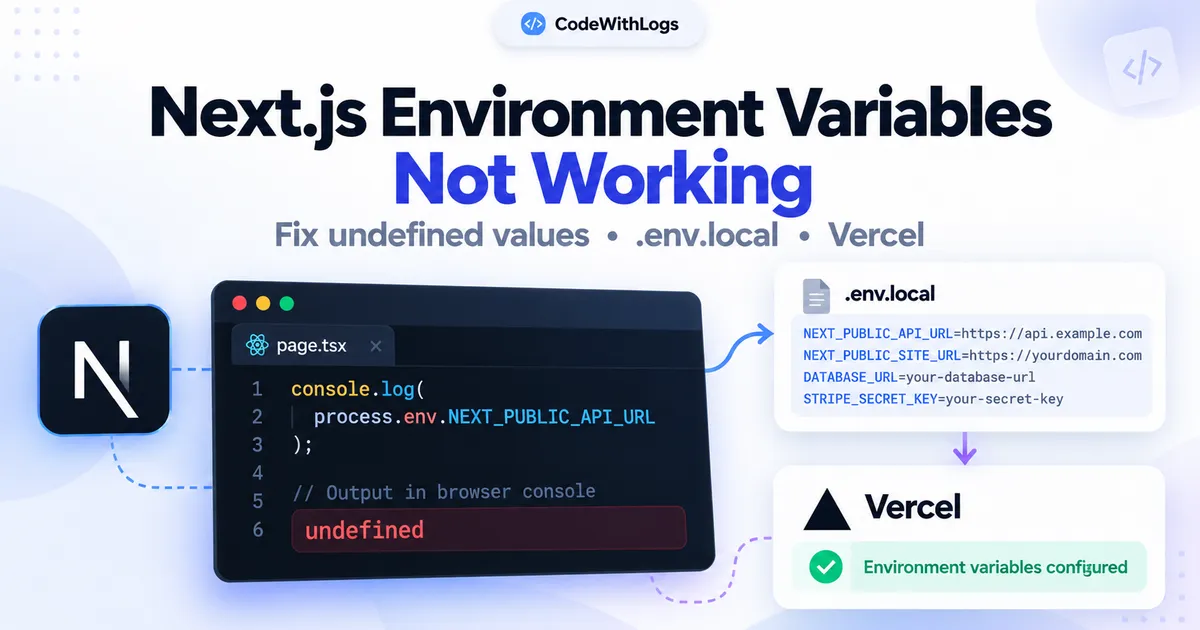
Next.js Environment Variables Not Working? 9 Fixes for Undefined Values
You add an API key to .env.local, start your Next.js application, and expect everything to work.
Instead, the value is undefined.
Maybe the variable works in a Server Component but disappears inside a Client Component. Perhaps everything works locally, but your Vercel deployment fails with a missing configuration error.
These problems usually come down to one of four things: where the environment variable is defined, where it's accessed, when it's evaluated, and which deployment environment supplies its value.
This guide walks through nine practical fixes for Next.js environment variables that aren't loading correctly.
The examples focus on the Next.js App Router and modern Next.js versions.
1. Check Your .env.local File Location
Next.js automatically loads supported environment variable files.
But the file needs to be in the correct directory.
A typical project looks like this:
my-nextjs-app/
├── .env.local
├── package.json
├── next.config.ts
├── src/
│   └── app/
│       └── page.tsx
└── public/
Notice that .env.local is in the project root, next to package.json.
It is not inside src.
A common mistake is creating:
src/.env.localNext.js doesn't load that location as the normal project environment file.
Fix
Move the file to the project root.
Add an example variable:
NEXT_PUBLIC_APP_NAME=Example DashboardRestart the development server and read the variable using:
export default function HomePage() {
  return (
    <h1>{process.env.NEXT_PUBLIC_APP_NAME}</h1>
  );
}
The value should be available when Next.js correctly loads the configuration.
If the value is still missing, continue with the next checks.
2. Restart the Next.js Development Server
Changes to .env.local aren't always reflected by an already-running development process.
For example, you start the application:
npm run devThen add a new environment variable without restarting.
The running process may continue using the previous configuration.
Fix
Stop the development server using Ctrl + C.
Then restart it:
npm run devReload the page.
For browser-visible variables, check the application again after restarting.
Don't start by deleting .next or node_modules. A normal restart is a simpler first troubleshooting step.
3. Understand the NEXT_PUBLIC_ Prefix
This is one of the most common causes of undefined environment variables in Next.js.
By default, environment variables without the NEXT_PUBLIC_ prefix are intended for server-side code.
For example:
DATABASE_URL=postgresql://exampleThis is a server-only configuration value.
You shouldn't expect it to be available inside browser-delivered JavaScript.
Incorrect: Reading a private variable in a Client Component
"use client";

export default function Example() {
  console.log(process.env.DATABASE_URL);

  return <p>Check the browser console</p>;
}
The browser cannot access this private environment variable through the normal Next.js environment handling.
Correct: Use NEXT_PUBLIC_ for public configuration
NEXT_PUBLIC_API_BASE_URL=https://api.example.comThen:
"use client";

export default function Example() {
  const apiUrl =
    process.env.NEXT_PUBLIC_API_BASE_URL;

  return <p>API: {apiUrl}</p>;
}
Important security warning
Adding NEXT_PUBLIC_ makes the value eligible for inclusion in JavaScript delivered to visitors.
Use it only for genuinely public configuration, such as a public site URL or intended browser-side publishable key.
Never use it for:
- Database passwords
- Private API keys
- Supabase service-role or secret keys
- Payment processor secret keys
- Authentication signing secrets
If a secret needs to be used for an operation, perform that operation securely on the server instead.
4. Use Direct Environment Variable Access
Next.js can replace statically referenced public environment variables during the build.
The usual pattern is:
const apiUrl =
  process.env.NEXT_PUBLIC_API_BASE_URL;
But dynamic lookups may not receive the same build-time replacement.
Problematic example
const variableName =
  "NEXT_PUBLIC_API_BASE_URL";

const apiUrl = process.env[variableName];
This is not equivalent to the supported static-reference pattern for browser inlining.
Likewise:
const env = process.env;

const apiUrl =
  env.NEXT_PUBLIC_API_BASE_URL;
may not be transformed as expected.
Fix
Use the direct property reference:
const apiUrl =
  process.env.NEXT_PUBLIC_API_BASE_URL;
This matters especially inside browser-side code.
When debugging a missing public variable, replace dynamic access with a direct reference before changing unrelated configuration.
5. Check Whether the Variable Is Needed at Build Time or Runtime
Next.js supports both build-time and runtime configuration, but the distinction matters.
Build-time public variables
A variable like:
NEXT_PUBLIC_SITE_URL=https://example.comcan be embedded into the browser bundle during next build.
For example:
const siteUrl =
  process.env.NEXT_PUBLIC_SITE_URL;
After the application is built, changing the environment variable in the hosting dashboard does not automatically change the JavaScript bundle that visitors receive.
Fix
Update the environment value and create a new deployment.
This is especially important when promoting the same build artifact between different environments.
Server-side runtime variables
Server-side code can read environment variables at request time when it executes in a dynamic server-rendering context.
For example, in the App Router:
import { connection } from "next/server";

export default async function StatusPage() {
  await connection();

  const configured = Boolean(
    process.env.INTERNAL_API_URL
  );

  return (
    <p>
      API configured: {configured ? "Yes" : "No"}
    </p>
  );
}
This example reports only whether a server-side setting exists; it does not expose its value.
The connection() API makes this rendering path depend on an incoming request.
It is appropriate when runtime evaluation is required, but don't force dynamic rendering for every page without a reason.
A common misconception
Not every server-side environment-variable read automatically happens at request time.
If a page or module is evaluated during the build, the value may be read during the build instead.
Understand the actual execution context before deciding that a redeployment or a runtime setting should fix the issue.
6. Fix Environment Variables on Vercel
Your application may work locally but fail after deployment because Vercel doesn't automatically receive your .env.local file.
For example:
MONGODB_URI=your_private_connection_stringmight exist on your computer but not in the Vercel project settings.
Fix
Open your project in Vercel.
Navigate to the environment variable settings.
Add the values your deployed application requires.
Review which environments should receive each variable:
- Production
- Preview
- Development
Don't automatically copy development secrets into production.
Example: Supabase with Next.js
For a browser-side Supabase client, your configuration may include:
NEXT_PUBLIC_SUPABASE_URL=https://example.supabase.co
NEXT_PUBLIC_SUPABASE_PUBLISHABLE_KEY=your_publishable_key
These are placeholders.
Check that your Vercel project points to the correct Supabase project and that its credentials match the intended environment.
Redeploy after changing settings
Once you've corrected the Vercel configuration, create a fresh deployment where the new values are needed.
Remember that NEXT_PUBLIC_ values can be frozen in the build output.
Still undefined?
Check that the deployed commit is the one you expect and that the variable is configured for that deployment's environment.
A Preview deployment may use different values from Production.
7. Understand .env File Precedence
Next.js supports multiple environment files.
Examples include:
.env
.env.local
.env.development
.env.development.local
.env.production
.env.production.local
When more than one source defines the same variable, Next.js follows a lookup order.
The highest-priority source is an already defined process.env value.
For development, the typical priority is:
process.env.env.development.local.env.local.env.development.env
For production, the corresponding environment-specific filenames use production.
Example conflict
Suppose .env contains:
NEXT_PUBLIC_APP_NAME=Public AppBut .env.local contains:
NEXT_PUBLIC_APP_NAME=Local DashboardThe local override usually takes precedence when the environment files are loaded normally.
Fix
Search all relevant environment files for the variable name.
Also inspect the environment variables configured in your terminal, hosting provider, or process manager.
Avoid defining the same variable in several places unless the overrides are intentional.
Special case: Tests
Next.js uses different environment-loading behavior for NODE_ENV=test.
In particular, .env.local is not included in the normal test-mode lookup.
This helps make automated tests less dependent on a developer's personal local settings.
8. Check Environment Variable Names and Syntax
A small typo can produce an undefined value.
For example:
NEXT_PUBLIC_API_URL=https://api.example.comBut your code reads:
process.env.NEXT_PUBLIC_APIURLThese are different names.
Environment variable names should match exactly.
Common mistakes
Misspelled names
NEXT_PUBLIC_SUPBASE_URLinstead of:
NEXT_PUBLIC_SUPABASE_URLIncorrect separators
NEXT_PUBLIC_API_URL: https://api.example.comUse the normal environment-file assignment syntax:
NEXT_PUBLIC_API_URL=https://api.example.comUnexpected quotation or whitespace behavior
When a value contains special characters or spaces, use the appropriate .env syntax and verify how it's parsed.
Variable expansion
Next.js can expand references that use $ in environment files.
If your literal secret contains dollar signs, review the escaping behavior instead of assuming it will be copied unchanged.
Check your TypeScript code
A non-null assertion like this:
const apiUrl =
  process.env.NEXT_PUBLIC_API_URL!;
doesn't create the variable or verify that it exists at runtime.
It only affects TypeScript's static checking.
A safer pattern for required server-side settings is:
const apiUrl = process.env.INTERNAL_API_URL;

if (!apiUrl) {
  throw new Error(
    "INTERNAL_API_URL is not configured"
  );
}
This fails with a clear configuration error instead of silently continuing with undefined.
9. Avoid Accidentally Exposing Secrets Through next.config
Next.js supports an env option inside its configuration file.
However, variables specified through this mechanism are bundled into JavaScript in supported build configurations.
That makes it inappropriate for private credentials.
Unsafe pattern
// Do not expose server secrets this way.
module.exports = {
  env: {
    DATABASE_PASSWORD: "private-password",
  },
};
Safer approach
Keep the secret in your hosting provider's server-side environment settings or a private local environment file.
Read it only in trusted server-side code:
import "server-only";

export function getDatabasePassword() {
  const value =
    process.env.DATABASE_PASSWORD;

  if (!value) {
    throw new Error(
      "Missing database configuration"
    );
  }

  return value;
}
Don't pass the password to a Client Component or include it in a rendered page.
Also avoid printing complete environment objects to logs.
10. A Practical Environment Variable Debugging Checklist
If a Next.js environment variable is undefined, follow this order:
Step 1: Confirm the exact variable name.
Step 2: Verify that .env.local is in the project root.
Step 3: Restart the development server.
Step 4: Check whether the code runs in the browser or on the server.
Step 5: Use NEXT_PUBLIC_ only for browser-safe values.
Step 6: Replace dynamic process.env lookups with direct property references where necessary.
Step 7: Compare environment-file precedence and externally configured values.
Step 8: If the issue happens on Vercel, inspect the relevant deployment environment and rebuild when required.
Step 9: Confirm whether the value is needed at build time or at runtime.
Don't delete your lockfile, remove dependencies, or disable security settings to solve a missing environment variable.
Those changes usually target the wrong problem.
11. How to Test Your Fix Without Exposing Secrets
A useful test should confirm that the variable is available in the correct execution environment.
For a public test value, you can temporarily create:
NEXT_PUBLIC_ENV_CHECK=workingThen read it in a Client Component:
"use client";

export default function EnvironmentCheck() {
  return (
    <p>
      Public variable:{" "}
      {process.env.NEXT_PUBLIC_ENV_CHECK ??
        "missing"}
    </p>
  );
}
Restart the development server.
Expected output:
Public variable: workingFor a private server-side variable, verify its presence without returning the secret.
For example:
const configured =
  Boolean(process.env.DATABASE_URL);
Only report whether it is configured.
Don't expose the actual value through an API response, rendered page, or browser console.
Verification note: These are documented configuration patterns and expected outcomes. The examples have not been independently executed in a live Next.js/Vercel deployment for this article.
12. Frequently Asked Questions
Why is process.env undefined in a Next.js Client Component?
Browser-side code cannot normally access private server environment variables. Values intended for browser JavaScript must use the NEXT_PUBLIC_ convention and be available during the build.
Check the exact variable name and whether the code is running in the browser.
Why does .env.local work locally but not on Vercel?
Vercel needs the required values configured in its deployment environment. Local .env.local files are normally excluded from Git.
Check the Vercel project settings and redeploy when necessary.
Do I need dotenv in Next.js?
Usually not. Next.js automatically loads supported environment files.
For tools running outside the Next.js runtime, @next/env can help load the same configuration.
Does changing NEXT_PUBLIC_ require rebuilding?
For values inlined into browser JavaScript, yes. They are evaluated during the build, so a fresh build is required to change them.
Can I store secrets in NEXT_PUBLIC_ variables?
No. Treat NEXT_PUBLIC_ values as public.
Keep secret credentials in trusted server-side settings.
Why does my variable work in development but fail during npm run build?
The build may use a different environment, an earlier validation step, or production-specific configuration. Compare your environment files, deployment settings, and when the value is read.
Should I delete the .next folder?
It's rarely the first step. Restart the development server and verify variable names, file locations, and environment configuration first.
Final Thoughts
When environment variables don't work in Next.js, the problem is usually not complicated JavaScript.
It's often a mismatch between configuration and execution context.
The file might be in the wrong directory. The application may need a restart. A browser component may be trying to read a server-only secret. Or your Vercel deployment may be using values from the wrong environment.
Start with the basics, then investigate build-time and runtime behavior.
Most importantly, don't solve an undefined value by exposing private credentials.
A correct fix makes the configuration available where it's needed while keeping sensitive values protected.
Related CodeWithLogs Guides
- How to Deploy Next.js to Vercel
- Common Vercel Deployment Errors
- Debug Production Errors in Next.js
- Next.js Authentication Without NextAuth
- package.json Inspector
Official Documentation
Keep the conversation useful
Found a different result?
Include your framework version, the error, and the steps to reproduce it. Specific details help improve the article for the next reader.
Send a correction or question