
How I Sync Supabase Data with Google Sheets Automatically
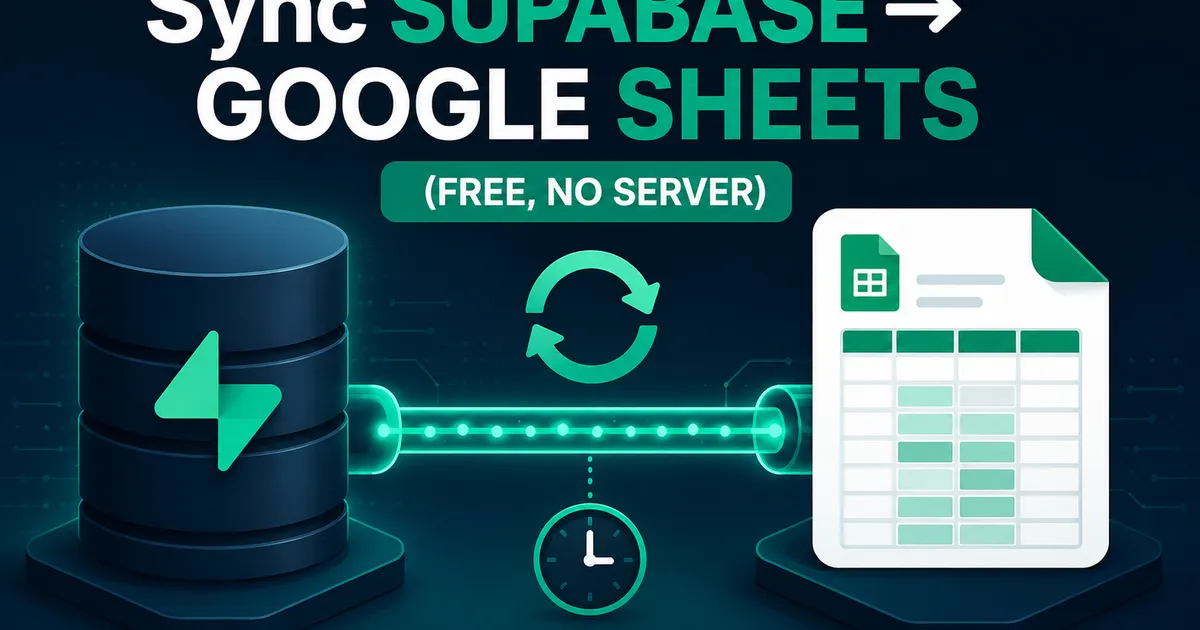
My client didn't want a dashboard, he wanted Google Sheets. Here's the free setup I use to sync Supabase data to Sheets automatically.
Zeeshan Zakir
I once spent two weeks building a genuinely nice analytics dashboard for a client. Charts, filters, date ranges, the works. On the handover call, he looked at it for about ten seconds and asked: "Nice. Can you also just put this in Google Sheets? My accountant works there."
I wanted to argue. I didn't. Because honestly, he was right — for his team, Sheets was the interface they already knew. So I figured out how to sync Supabase data into Google Sheets automatically, and the setup I landed on costs nothing and has been running for months without me touching it.
The options I considered first
Zapier / Make: Works, but row limits and monthly costs pile up fast for what is essentially a data copy job. Hard to justify for a small business.
Manual CSV export: Supabase's dashboard exports CSV fine, but "automatic" was the whole point. Nobody sticks to a manual weekly export. Ever.
A cron job on my own server: I could write a Node script and schedule it, but now I'm maintaining a server for a spreadsheet. No thanks.
Google Apps Script: The winner. It runs on Google's servers for free, lives inside the spreadsheet itself, and has built-in time-based triggers. No infrastructure at all.
How the sync works
The idea is simple: Supabase exposes every table through a REST API. Apps Script can call that API on a schedule and write the rows into a sheet. That's the entire architecture.
Step 1: Create a safe way to read the data
Don't wire your service_role key into a spreadsheet script if you can avoid it. What I do instead is create a dedicated read-only view in Supabase containing only the columns the client actually needs:
create view report_orders as
select id, customer_name, total, status, created_at
from orders;
Then I make sure RLS on the underlying table stays intact, and I expose this view to the anon role for read-only access, or — if the data is sensitive — I keep using a key but store it in Script Properties (never in a cell), and restrict who the spreadsheet is shared with. Pick based on how sensitive the data is.
Step 2: The Apps Script
In your Google Sheet: Extensions → Apps Script. Then something like this:
const SUPABASE_URL = 'https://yourproject.supabase.co';

function syncOrders() {
  const key = PropertiesService.getScriptProperties()
    .getProperty('SUPABASE_KEY');

  const response = UrlFetchApp.fetch(
    SUPABASE_URL + '/rest/v1/report_orders?select=*&order=created_at.desc',
    { headers: { apikey: key, Authorization: 'Bearer ' + key } }
  );

  const rows = JSON.parse(response.getContentText());
  if (rows.length === 0) return;

  const sheet = SpreadsheetApp.getActiveSpreadsheet()
    .getSheetByName('Orders');

  const headers = Object.keys(rows[0]);
  const values = rows.map(r => headers.map(h => r[h]));

  sheet.clearContents();
  sheet.getRange(1, 1, 1, headers.length).setValues([headers]);
  sheet.getRange(2, 1, values.length, headers.length).setValues(values);
}
Store the key once via Project Settings → Script Properties. The script wipes and rewrites the sheet each run, which for reporting purposes is exactly what you want — the sheet is a mirror, not a database.
Step 3: Make it automatic
In the Apps Script editor, open Triggers (the clock icon) → Add Trigger → choose syncOrders, time-driven, every hour (or whatever frequency makes sense). Done. Google runs it for you from now on.
The first time I watched the sheet update itself while the client was on a call with me, the two weeks of dashboard work stung a little less.
The gotchas that got me
The 1000-row limit. Supabase's REST API returns a maximum of 1000 rows per request by default. My first version silently synced exactly 1000 orders and dropped the rest. The client noticed before I did, which is never fun. The fix is paginating with the Range header or limit/offset parameters in a loop until you get a short page.
Timestamps look ugly in Sheets. Postgres timestamps arrive as ISO strings. Either format them in the SQL view (to_char(created_at, 'YYYY-MM-DD HH24:MI')) or apply number formatting in the sheet. Doing it in the view keeps the script dumb, which I prefer.
Apps Script quotas exist. Free Google accounts get a limited number of trigger runs and URL fetches per day. An hourly sync is nowhere near the limit, but if you get ambitious with every-minute syncs across several sheets, you'll hit the ceiling.
clearContents() vs clear(). clear() also nukes your formatting and any header styling. clearContents() only removes values. Learned that one after re-formatting the header row for the third time.
What about syncing the other direction?
Sheets → Supabase is possible too — an onEdit trigger can push changes to a Next.js API route or straight to the REST API. I've built it once, and my honest take: be careful. A spreadsheet where anyone can type anything is a dangerous write-source for a production database. For the one client who needed it, I limited it to a single "notes" column and validated everything server-side.
For most cases, keep the flow one-directional: Supabase is the source of truth, Sheets is the friendly window into it.
When this setup is the right call
This isn't for real-time analytics or massive tables. It's for that very common situation where a non-technical person — an accountant, a manager, a co-founder — wants to see live-ish business data in a tool they already use daily. For that, an hourly Apps Script sync is honestly hard to beat: zero servers, zero subscriptions, and nothing for you to maintain.
The dashboard I built? Still deployed. Last time I checked the analytics, the client had opened it twice that month. The Google Sheet gets opened every morning. Build what people actually use.
Need help building this?
I offer full-stack development services for startups and product teams.
If you want a faster path from idea to shipped product, I can help with architecture, frontend systems, backend APIs, and launch-ready builds.
View ServicesShare this post
Related posts
More practical reading from the blog to keep your momentum going.

Supabase Row Level Security Explained with Real Examples (Copy These Policies)
Row Level Security finally clicked for me after one scary near-miss. Real policies you can copy — todos, blogs, teams, and admin roles.
10 Supabase Errors I Faced in Production (And Their Fixes)
Ten real Supabase errors from my production apps — RLS violations, JWT expiry, connection limits — with the exact fixes that worked.

AI Memory Systems: Short-Term vs Long-Term Memory
Every API call meets a total stranger — LLMs remember nothing. How AI memory systems actually work: short-term, long-term, and forgetting.